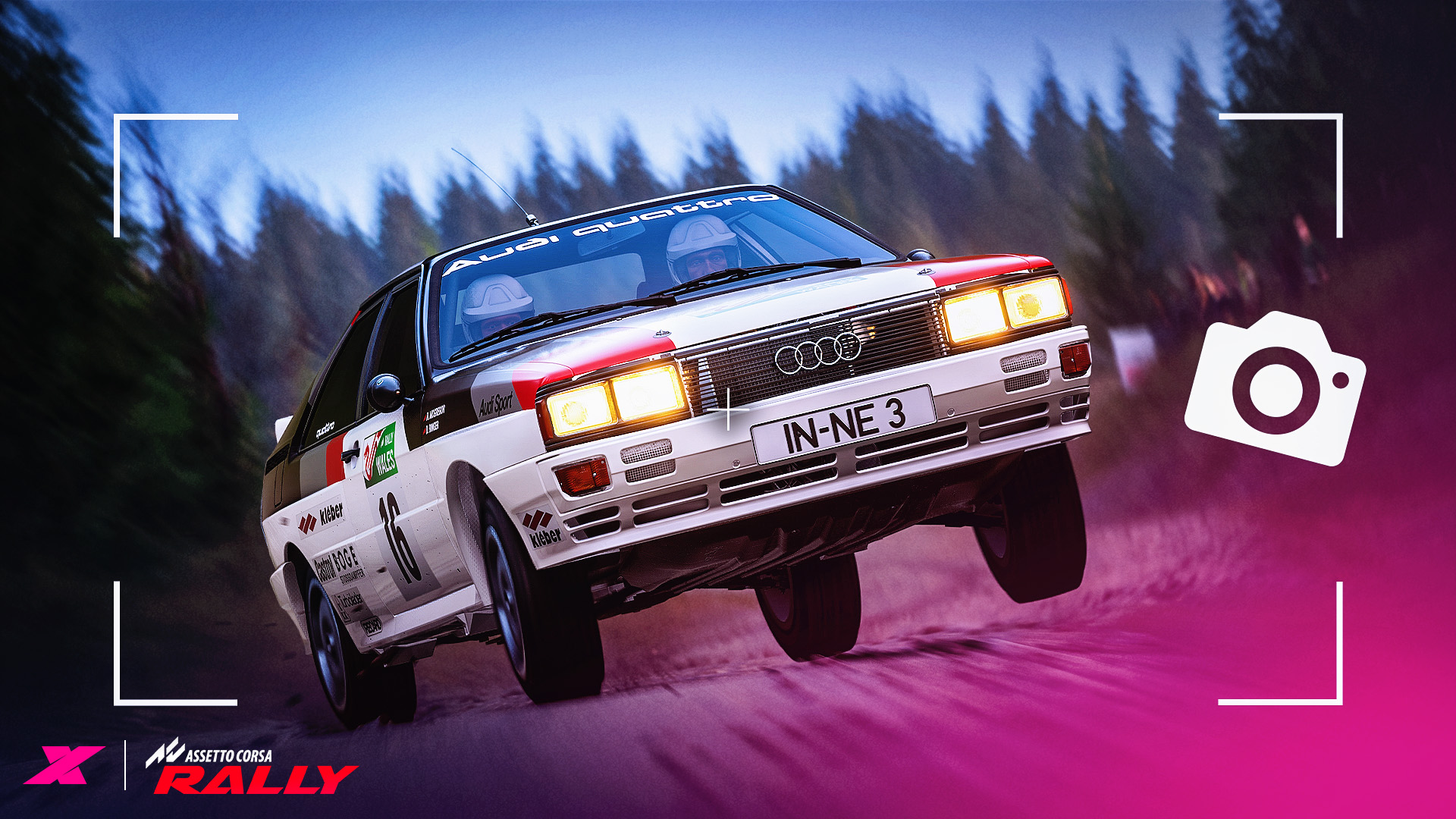
Assetto Corsa Rally’s V0.6 Early Access update added three new cars, private multiplayer lobbies and implemented custom liveries.
For many, however, the most eye-catching part of the new build was the introduction of a photo mode. Spoiler alert: it’s great.
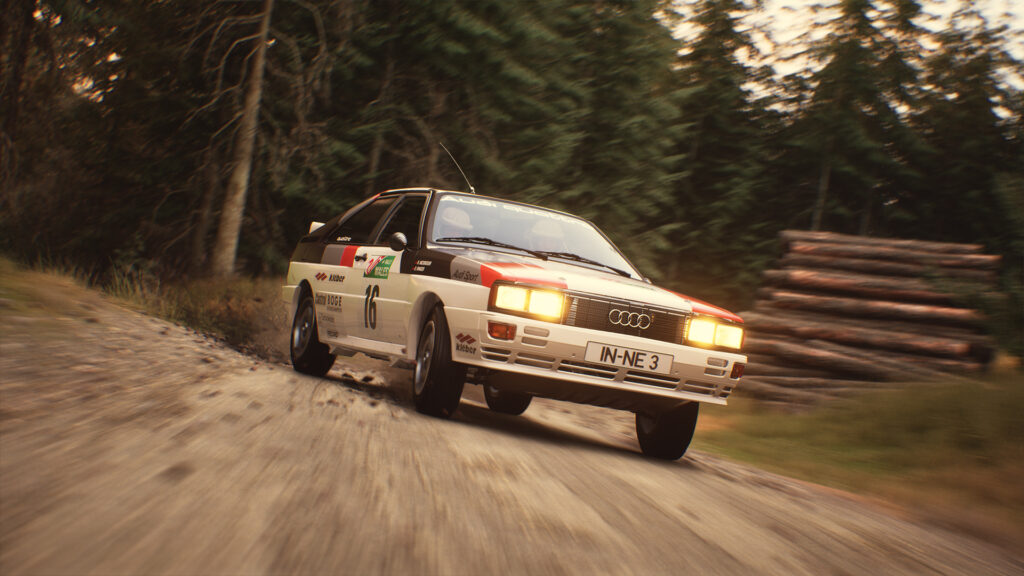
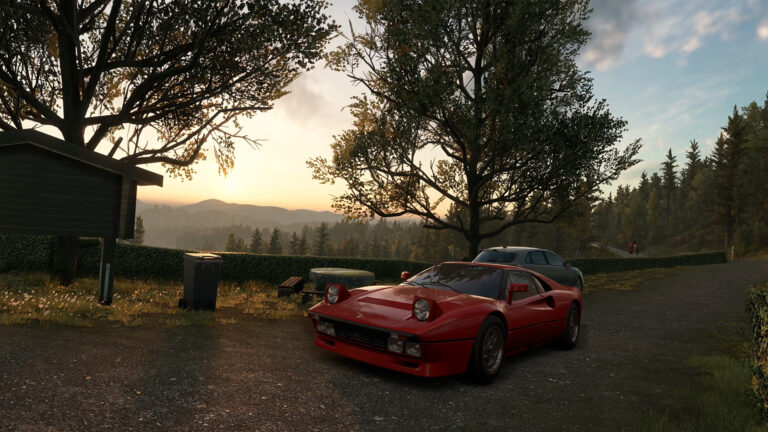
Thanks to its Unreal Engine 5 underpinnings, AC Rally can produce incredible static images (I mean, the game looks pretty good in motion, too). It also follows photography theory reasonably well, albeit with simplified steps.
Below, I’ll explain how to get to grips with the game’s photo mode so you can capture awesome images with minimal fuss.
Setting up
Before you start, crank up your graphics settings as far as possible so your final image looks its best it can be.
You can access photo mode from the car selection screen, the pause menu or from a replay. In a replay, scroll to a moment you want to capture, hit pause and press the ‘P’ key on your keyboard. Congratulations, you’re now in photo mode. Spot on.
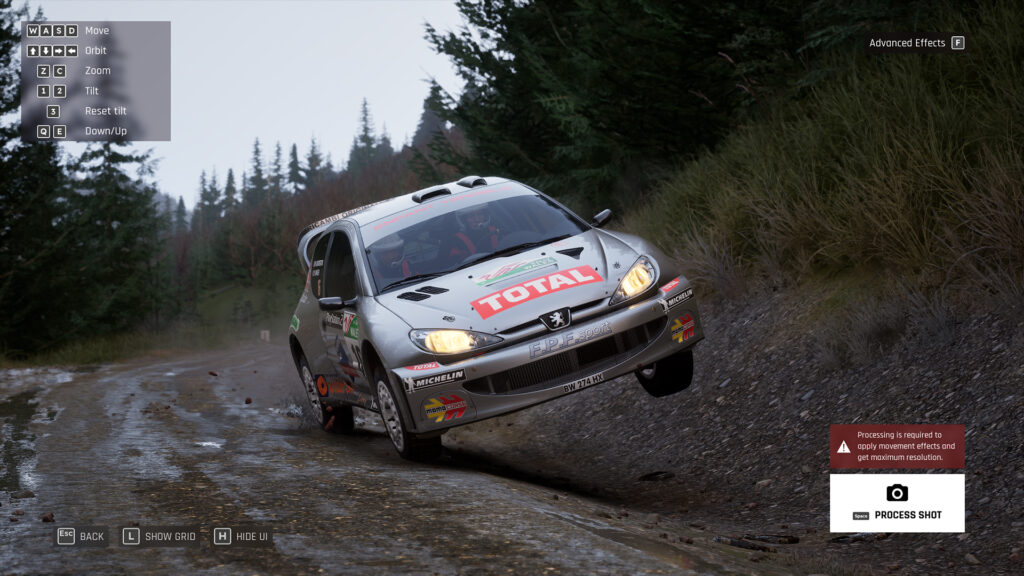
Your first task is to move your virtual camera into position for the ideal shot. Move the camera with the WASD keys, rotate it with 1 or 2, and move it up and down with Q and E. You can also zoom in and out with the Z and C keys, which increase or decrease the field of view, respectively.
To help you line up your shot, hit L to add a grid.
Bear in mind that using more zoom should create more natural background blur in your shot, regardless of the adjustments you make in the following ‘Advanced Effects’ menu.
Advanced effects
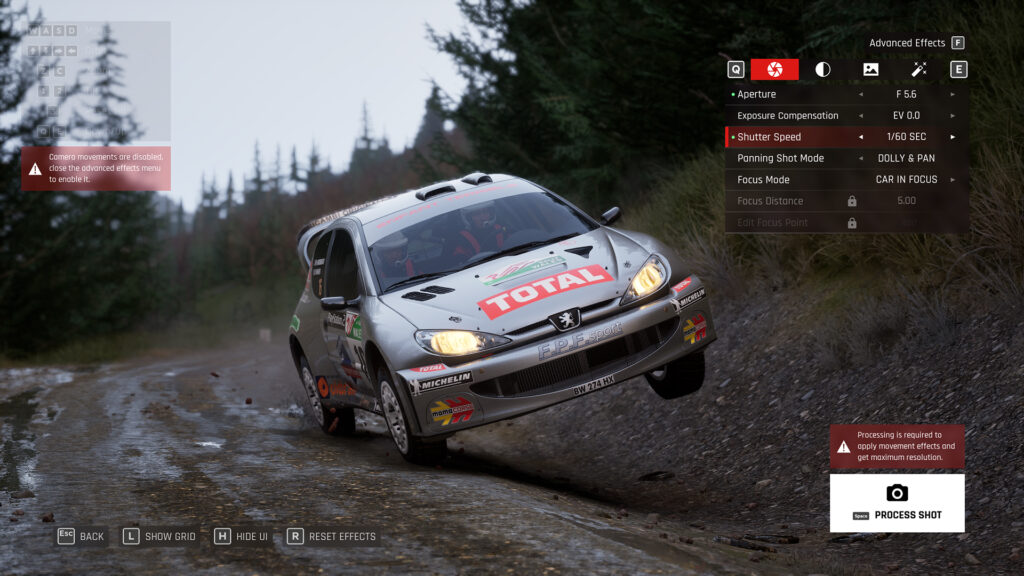
Once you set up the camera placement, you can move on to the Advanced Effects menu. Press F to pay respects access it.
The first set of options here are your main image controllers, with Aperture and Shutter Speed being the biggest hitters.
Aperture
A camera aperture is essentially the opening that allows light into your camera sensor. A fully open aperture (lower f-stop numbers) lets in more light, creating more background and foreground blur around the focal point.
A more closed aperture (higher f-stop numbers) makes more of the image sharper. Generally, lower numbers are good for portraits; higher numbers suit landscape photos.
For sports photography, balancing aperture with shutter speed is key to creating a perfectly exposed, dynamic image with a focused subject. Thankfully, virtual photography is far easier because the light is always consistent and your subject is static, so you don’t have to faff around with ISO or a telephoto zoom. Phew.
Shutter Speed
A camera shutter controls how much light reaches the sensor. If you leave the shutter open longer, more light gets in, and vice versa.
The Shutter Speed number is how long the shutter stays open; 1/100s is one one-hundredth of a second, and 1/1000s is one one-thousandth of a second. 1/100s is a larger unit of time than 1/1000s, so it lets more light reach the camera sensor.
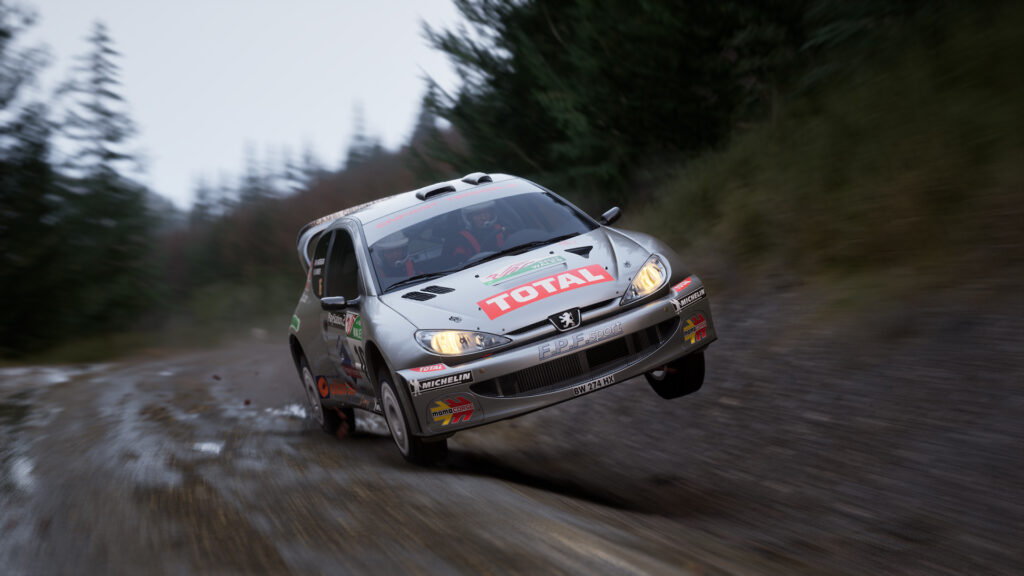
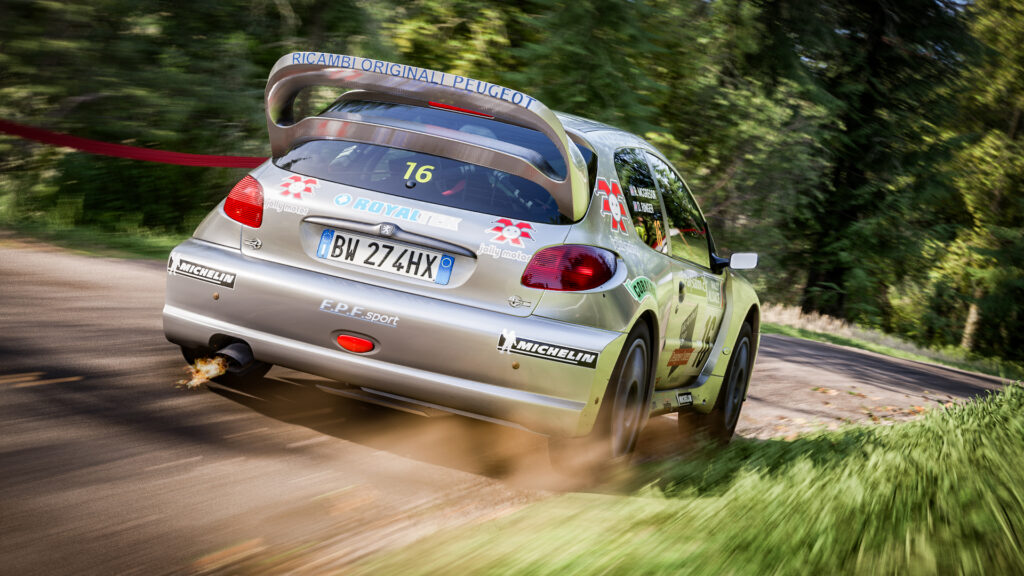
The lowest setting in AC Rally is 1/30s, which offers a ton of motion blur. 1/125s and 1/250s should offer a good amount of blur in real-world terms, but in-game they create too much sharpness, in my opinion. Therefore, I believe the sweet spot for action pans is currently 1/60s in AC Rally. Balancing this with a relatively high aperture (8.0+) will keep your subject nice and clear.
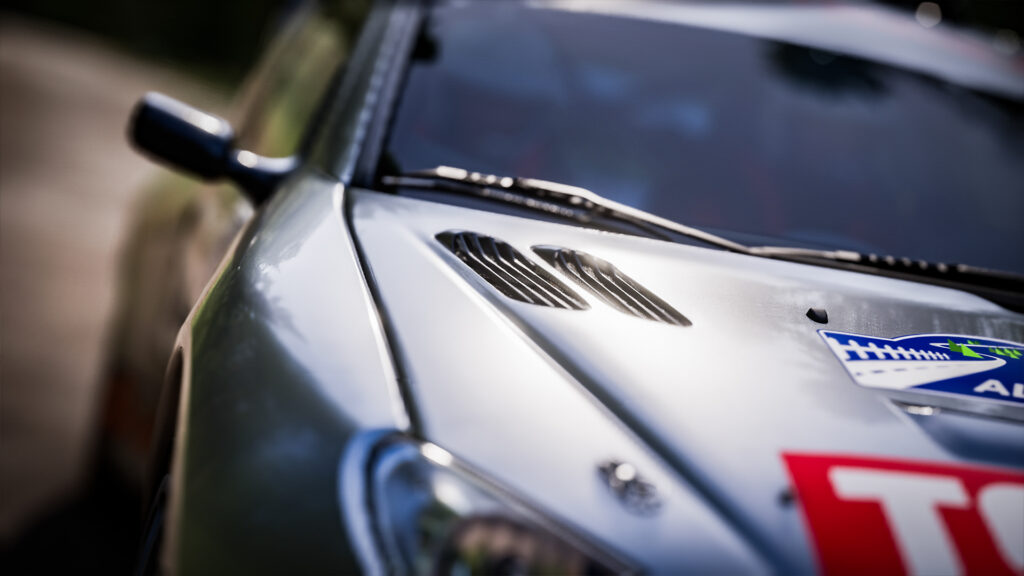
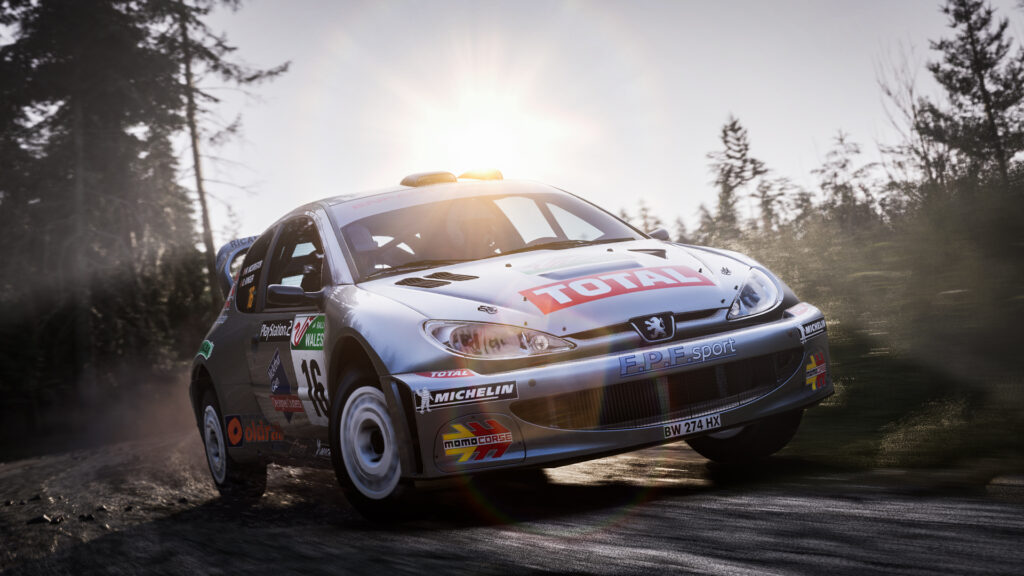
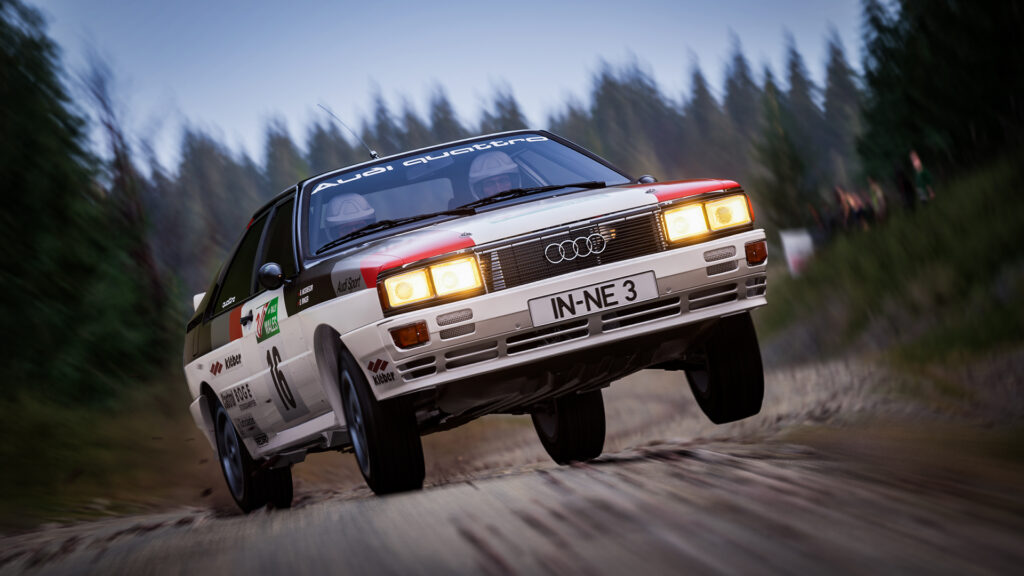
For ‘capture the moment’ shots, ie: a huge jump, crash or a stationary car, high shutter speeds keep the image crisp. Balancing this with a low aperture setting will create atmospheric background and foreground blur (also known as bokeh).
Going too low will cause parts of your subject to go out of focus, so be wary of over-egging the proverbial photographic pudding.
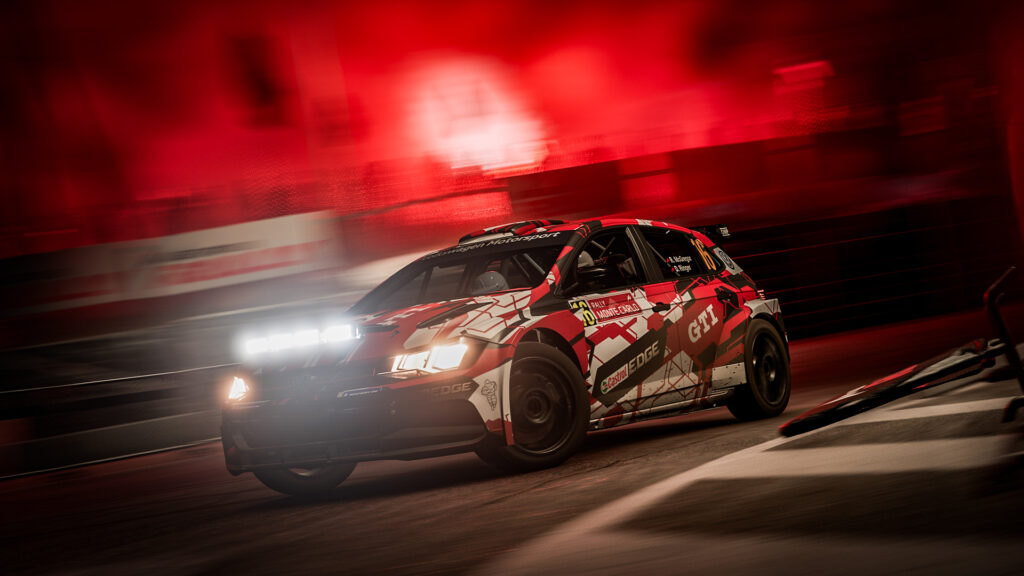
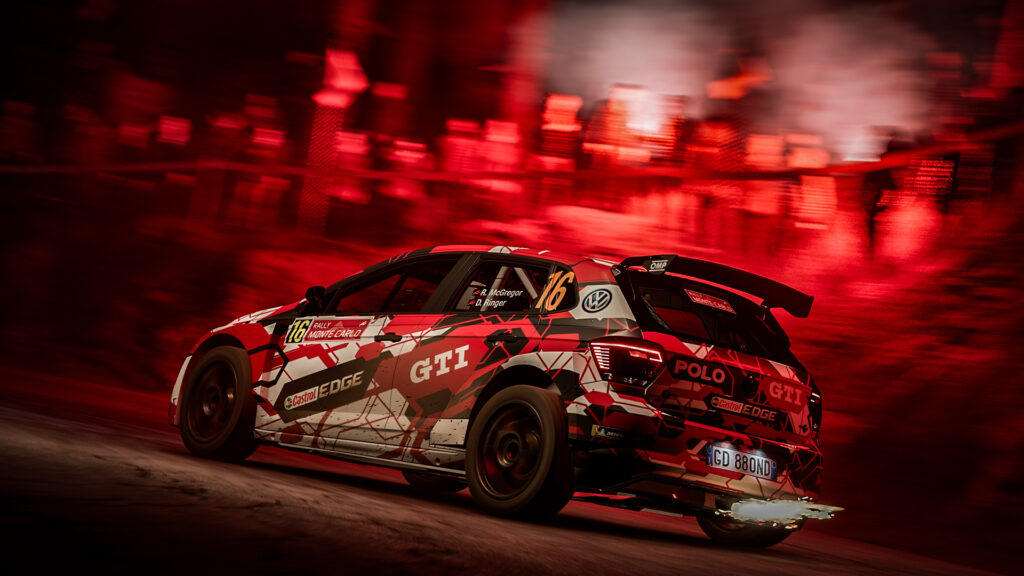
In future, I’d love to see slower shutter speeds introduced to allow me to create light trails in traditional Monte Carlo style.
Panning Shot and Focus Modes
By panning (moving your camera at the same speed as your subject car), you can achieve motion blur in both the background and wheels. The slower the shutter speed, the more pronounced the effect.
By default, the Panning Shot Mode in AC Rally’s photo mode is set to ‘Dolly & Pan’. A dolly is a mobile platform used mostly in video production to capture smooth footage. Combining both will give your car the best clarity when we eventually process the shot.
You can also select individual Panning, Dolly or Still Shot Modes, but selecting these requires a little more fettling to achieve good results.
Focus Distance and Edit Focus Point
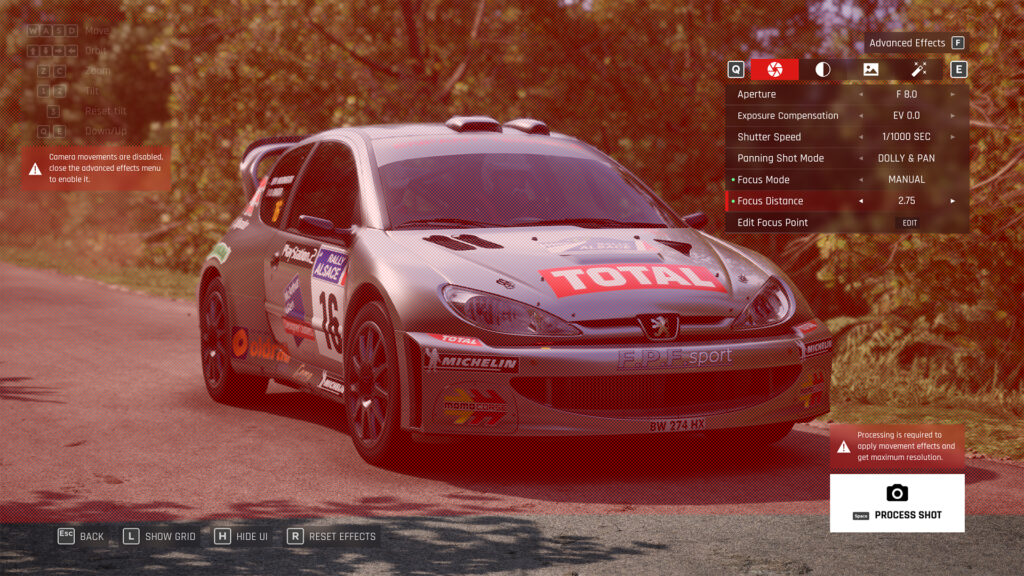
These settings let you take manual control of your shot by selecting the areas of the image that will be in focus. The red marking mask below shows the focal plane. It’s helpful for arty close-up shots of cars but quite time-consuming for the bread-and-butter photos most gamers want to take.
Edit Focus Point allows players to select the focal point of the image with pinpoint accuracy, and is only accessible if you change the Focus Mode from ‘Car in Focus’ to ‘Manual’
Exposure Compensation
If the image in AC Rally is too dark, you can brighten it by increasing the Exposure Compensation setting. From my experience, a couple of clicks more works well, but most daytime shots don’t require it.
Colour balance
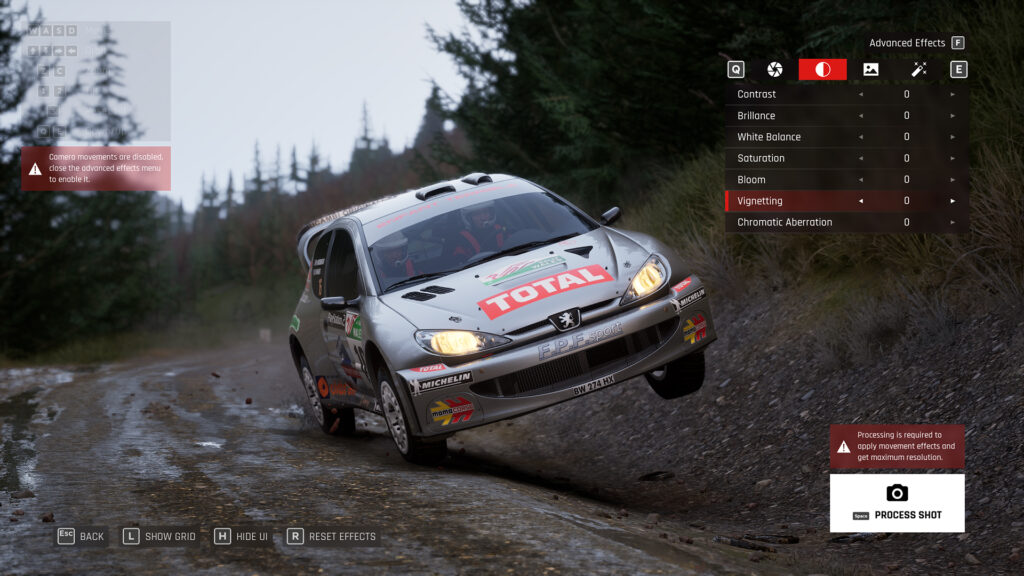
The next sub-menu in Advanced Effects mainly affects the image’s colour balance, with Contrast, Saturation, and White Balance settings. Generally, AC Rally does a good job in this respect by default, but you can tailor the settings to your whims regardless.
Brilliance
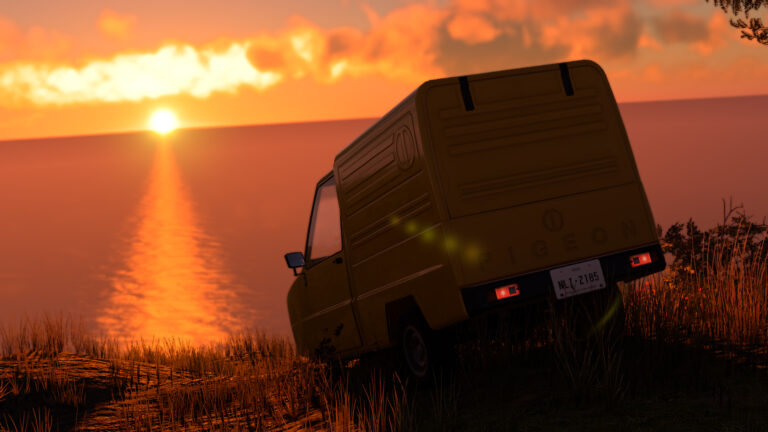
‘Brilliance’ balances extreme light and dark sections of the image. Increasing the setting brightens dark areas while reducing highlights. This works well in sunset or sunrise time-of-day settings when long shadows can drift across your subject.
Bloom
Bloom can also be altered. Increasing it creates the effect of light bleeding across your image, while decreasing it gradually removes it. I personally dislike the bloom effect because it can be overpowering and distract from your subject, but I also readily admit it can add atmosphere to headlights in a nighttime shot, for example.
Chromatic Aberration
Chromatic Aberration is another divisive setting. Also known as colour fringing, it’s an effect that simulates lower-quality camera lenses where light waves arrive in front of or behind their focal plane. This creates noticeable hazy rainbow effects in the corners of your shot.
Why would you want this? Well, it’s a neat way to simulate a knackered old camera lens that many amateur photographers used in the early days of rallying, and it can also help draw your eye into the centre of the image. Most of the time, though, you can avoid it completely.
Image settings
The third sub-menu displays random image settings, including the ability to place an AC Rally logo. Full credit to Supernova here, as this option is set to off by default.
You can change the proportions of the image if you fancy a bit of widescreen action, and you can also remove the spectators, which is a bit harsh on the bobblehatters if I’m being honest.
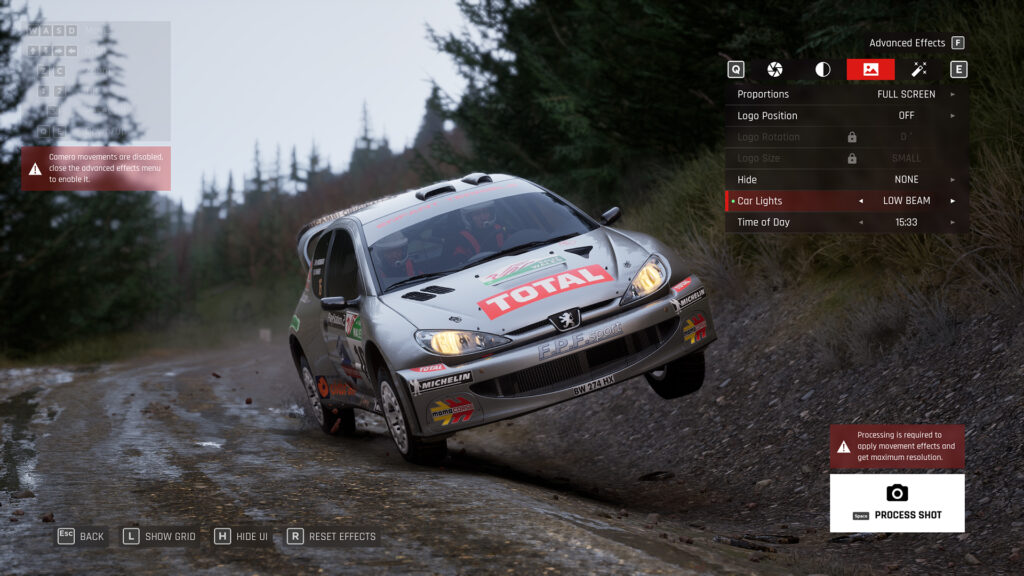
You can also switch your car’s headlights on or off here, as well as adjust the time of day, giving you a quick way to experiment with night-time photography. In the future, I’d love to see options to alter the sun’s position and the weather, but that’s just nit-picking.
Filters
The final sub-menu is pretty self-explanatory, letting you add up to three filters to your image.
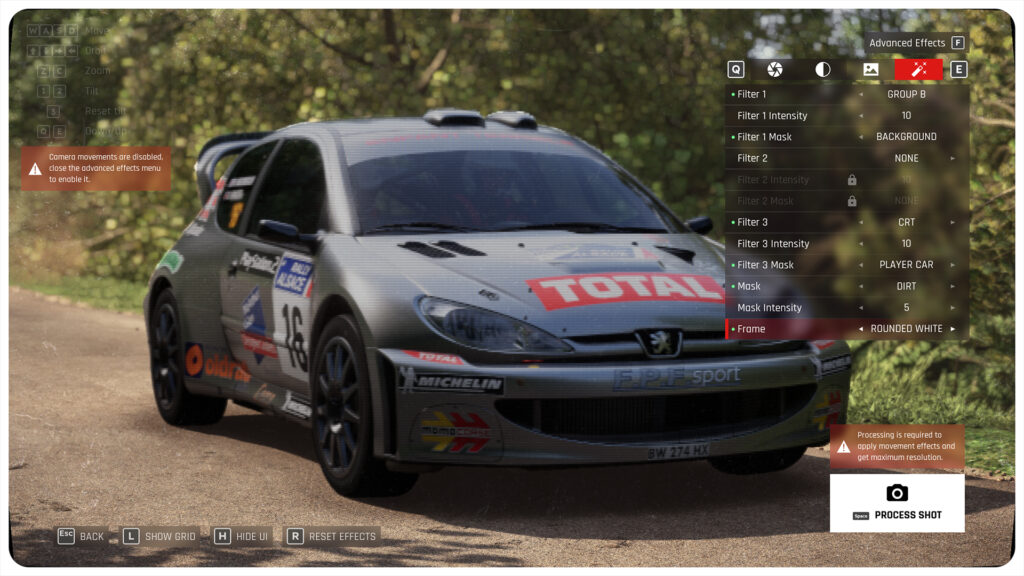
Cycle through the available options until you find one you like (the Group B filter combined with some chromatic aberration offers an aged look) and set its intensity. You can apply this to either the background or the car, with different combinations producing surprising – but mostly naff – results. The CRT filter is kinda cool though.
Finally, you can apply a mask of dirt, scratches, or water drops to the whole image, with four different frame options to choose from. If you like that kind of thing (I don’t).
Process Shot
The final step is to process your shot.
Press Space and wait a few seconds for the image to be produced. Once complete, you can save the finished product by hitting Space again, which saves a copy to your AC Rally ‘My Games’ folder.
Pressing H hides the HUD, allowing you to take a Steam screenshot with F12. For the best-quality image, you can set Steam to save screenshots as PNGs instead of JPGs.
To do this, head to Steam Settings -> In Game and check the ‘Save an external copy of my screenshots’, taking note of their location in the ‘External screenshots folder’ below.
To improve the look of your image further, you can use a photo editing application like Adobe Lightroom, but I’m sure you’ll agree that the game’s photo mode produces impressive results regardless.





Discussion