BeamNG has been released on PlayStation 5, and to celebrate this incredible technical achievement, we’ve compiled a few handy tips for your console-crashing adventures.
At the same time, a new update has been released for the PC edition of the game (V0.40), and the Beam team will develop both versions concurrently going forward.
To learn about the key features of V0.40, check out our accompanying article here, and if you want to find out our early thoughts on the PS5 version of BeamNG, head here.
How to modify your car and save it as a separate build
Modifying your car is one of BeamNG’sgreatest joys. In free-roam, you can change your chosen vehicle’s appearance and performance at no cost (unlike career mode).
To do this, pause the game and head to the Vehicle Config menu. Here, you can scroll through a multitude of options for your car, selecting different engine, suspension, tyre, differential, bodywork, and gearbox configurations (among many, many others).
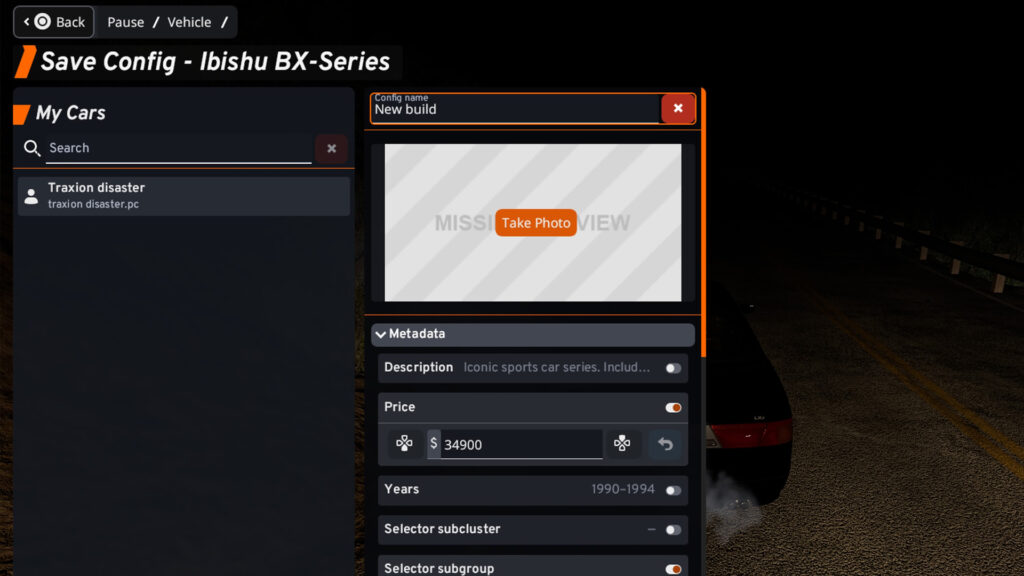
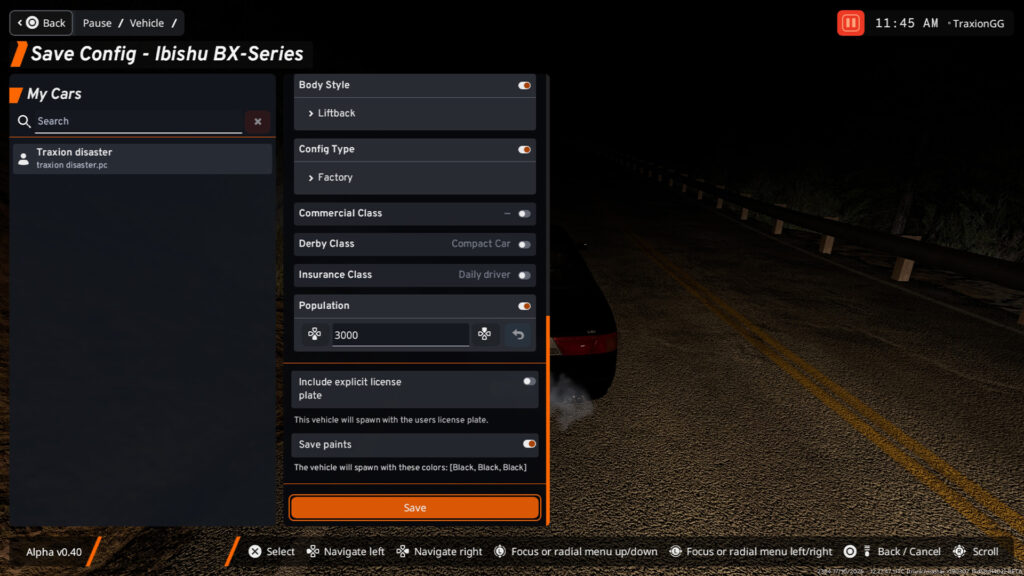
You can also change the paint colour (see further down this article for more detail on this) and save your build as a separate entity. To save the build, use R1 to switch to the Vehicle Config – Other menu, and move down to Save Config.
To make your car build appear as a favourite on the main vehicle selector screen, hover over it and press R3.
How to create a simple drift build and save it as a separate vehicle in BeamNG
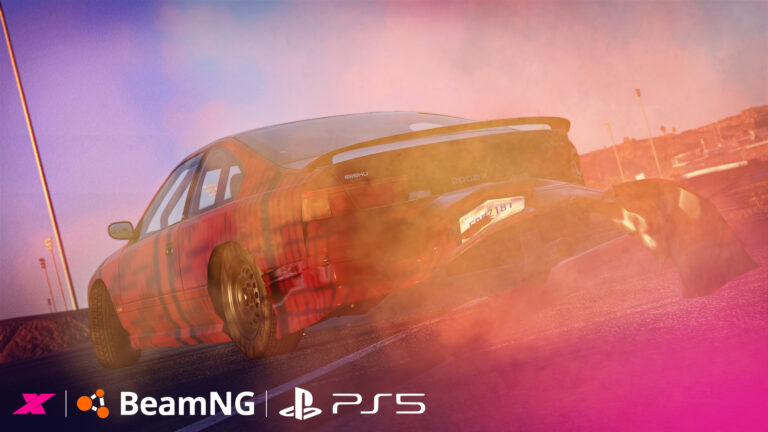
Using the Vehicle Config to select new parts, you can build a whole host of custom cars. For a drift build (always a popular choice in BeamNG), there are a few key items you’ll need to fit for the best slidey experience.
In Vehicle Config, you’ll see three sub-menus: Body, License Plate Design and Paint Design. Press Right on the D-Pad to open up the Body menu. Here you can find and tweak everything on your car.
The most obvious drift-centric item here is a welded diff, which you can select via the Rear Suspension -> Rear Differential sub-menus, but a massive engine will also be required, as will quick ratio drift steering Front Suspension -> Steering -> Quick Ratio Drift Steering). These will let you keep the rear wheels spinning while maintaining ridiculous drift angles.
Yeah man, mint
Beyond the obvious racecar parts, you’ll want mods to make your car stiff, powerful, and reactive.
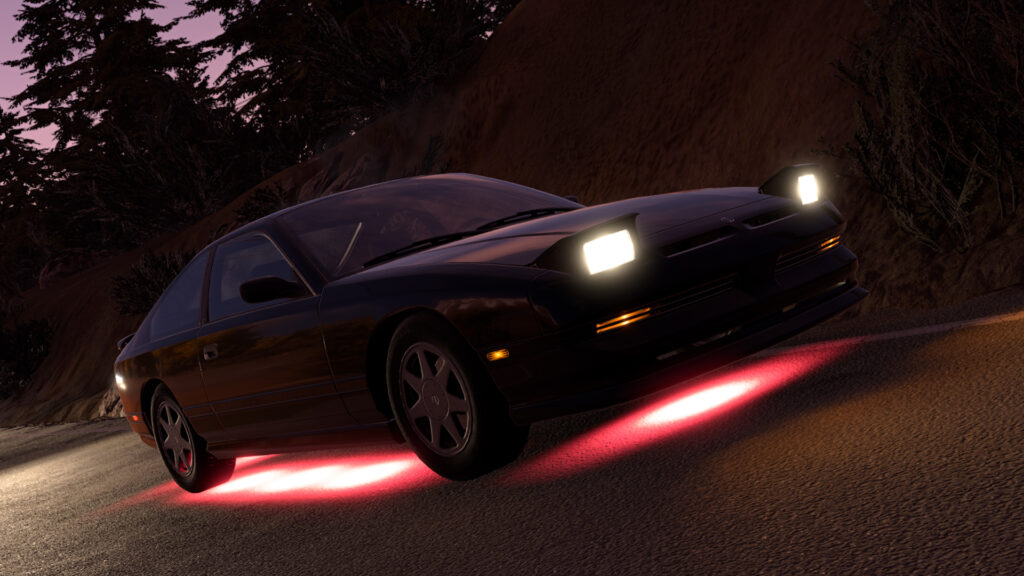
Oh, and you’ll also need to add underglow lights for that certain je ne sais quoi. Just remember to map a button combination to switch them on (using a combination of R1/L1 and another button works well for peripheral functions like this).
Save your special drift build as descirbed in the previous section.
Learn how to use BeamNG’s radial menus
Because the DualSense gamepad has a limited number of controls, PS5 players will need to get very familiar with the game’s array of controls and functions… because there are literally hundreds of them (you could buy a PS5-compatible keyboard as well, I suppose).
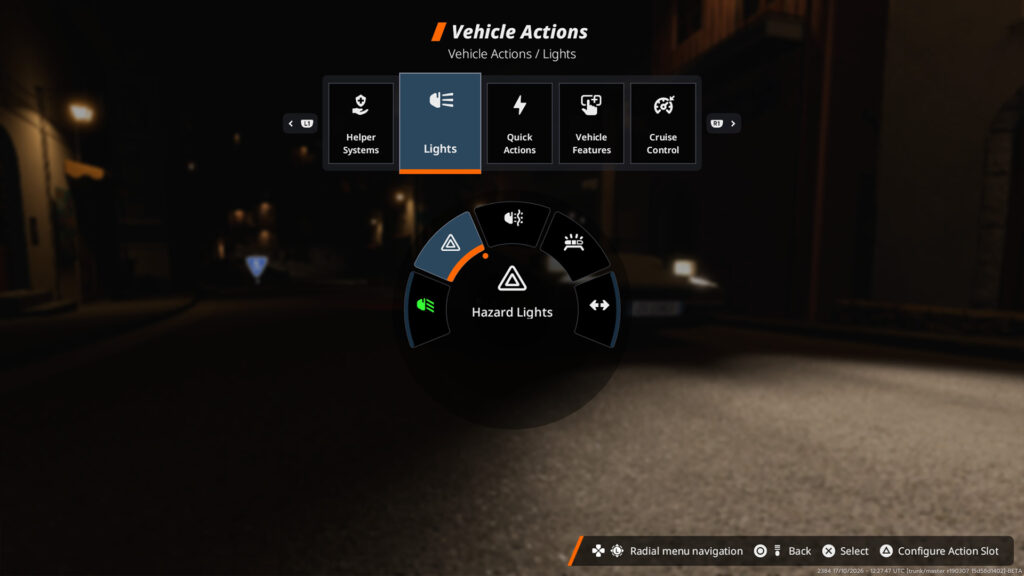
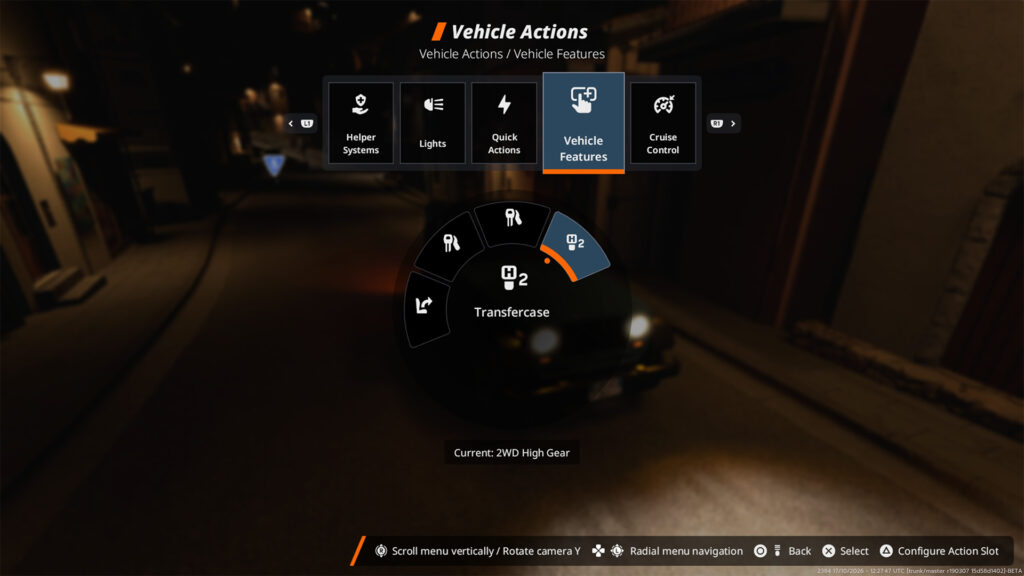
And the primary way to access many vehicles’ secondary actions is via the Radial Menu. To access this in-game, simply press Up on the D-pad, and to cycle through each sub-menu, press R1 and L1, using the right analogue stick to select your desired control.
It’s a pretty clunky system to begin with, but you’ll soon get the hang of it.
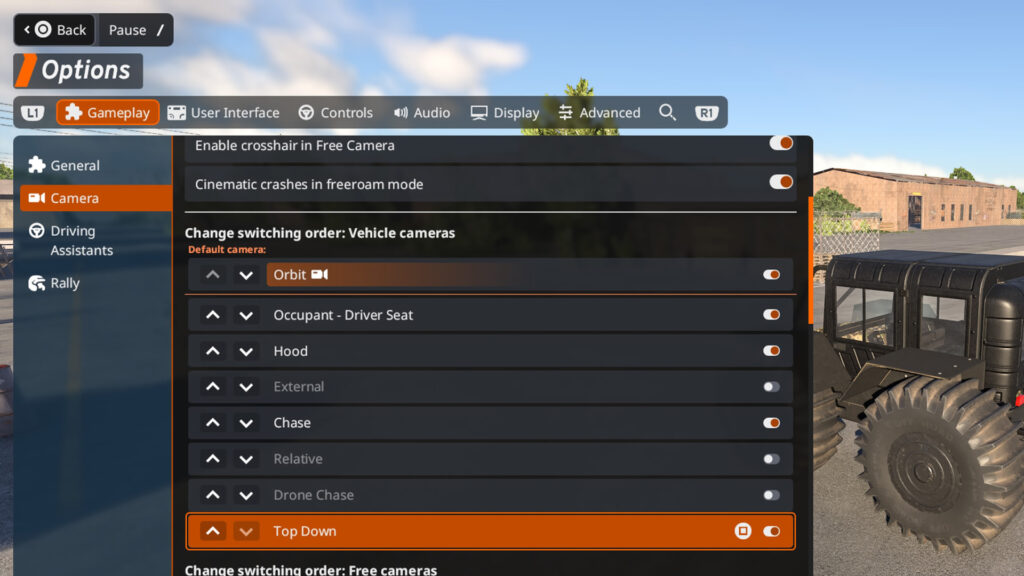
By heading into the options menu, you can configure the camera angles you’d like to use across the game. For truck and trailer reversing, I’ve found the ‘Top-down’ camera works well, as it gives an aerial view of the action, much like Euro Truck Simulator 2’s parking cam.
You’ll need to add this camera option manually, however, so nip into the Camera settings menu and add or delete angles as required.
Earn more money in career mode
This is a career mode-specific tip, but to avoid those expensive repair bills, try completing missions that don’t involve your own cars first.
Instead, aim for the more outlandish scenarios where the game puts you behind the wheel of its diverse roster of cars. Complete these, build up your cash reserves, and then you can focus on buying, modifying and crashing your own cars.
How to add AI cars and props
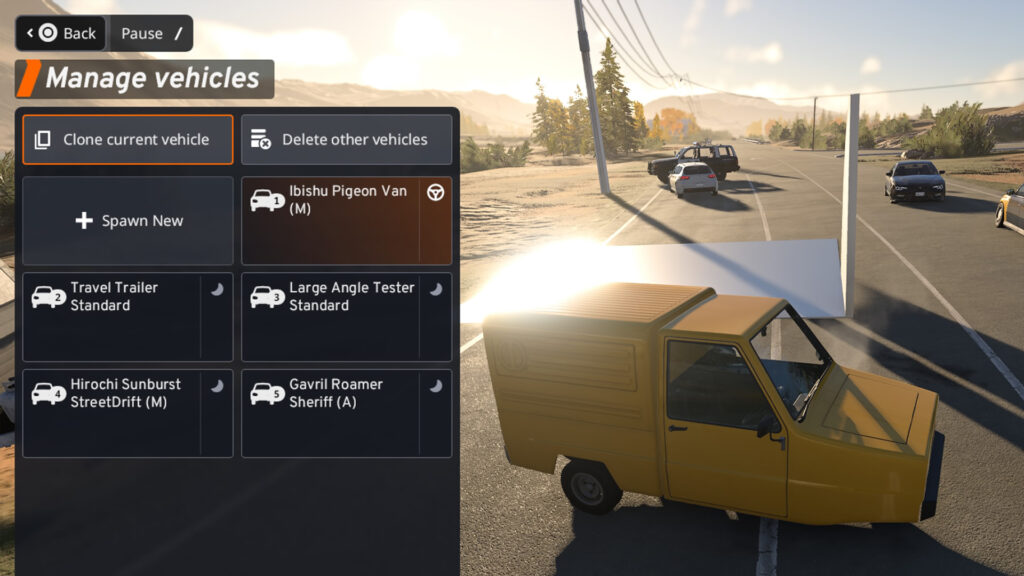
To add more AI traffic cars than the default four in free-roam, press Start and navigate to the Freeroam menu using R1.
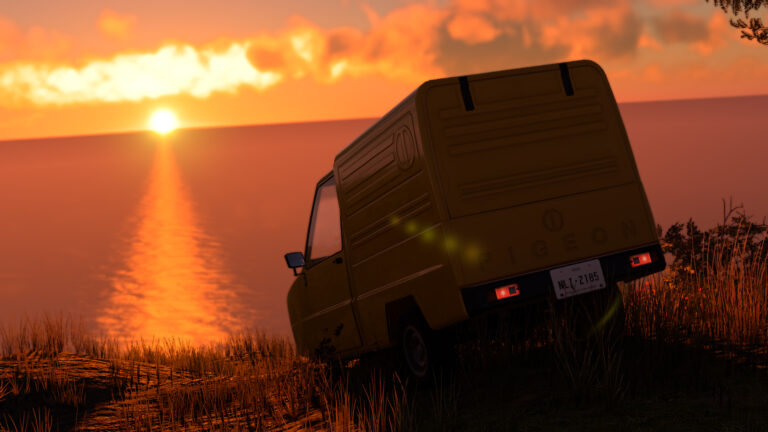
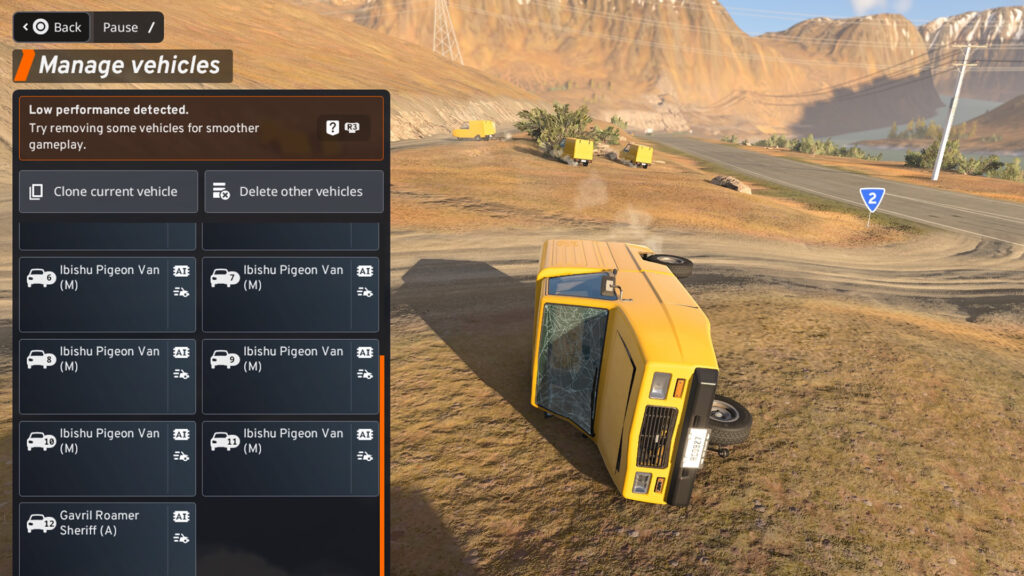
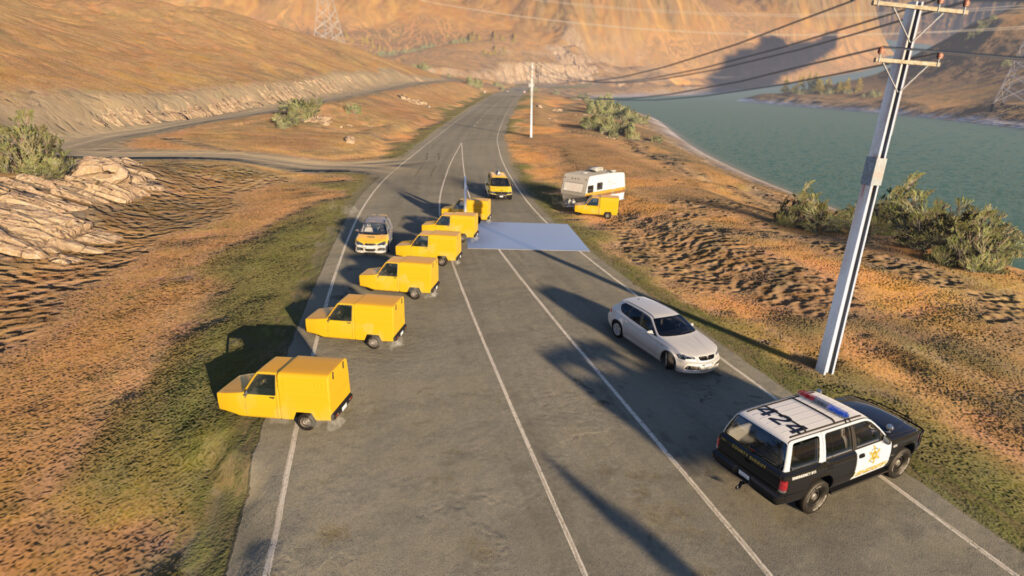
From here, you’ll be able to manually add AI cars and props. However, be warned: adding more will severely affect your frame rate; it might be fun to add 50 Pigeons, but the PS5 simply can’t cope.
Fortunately, Pigeons haven’t become sentient… yet
You can either clone your current vehicle or add a new one, allowing you to pick a custom spec and colour if you wish. Props like ramps, cannons and other zany items can also be added.
You can also choose whether the spawned cars are designated as parked, traffic, or a mix of both. For a bit of fun, you can also set the AI to chase or flee from you for some entertaining cops-and-robbers action.
Quick traffic spawn
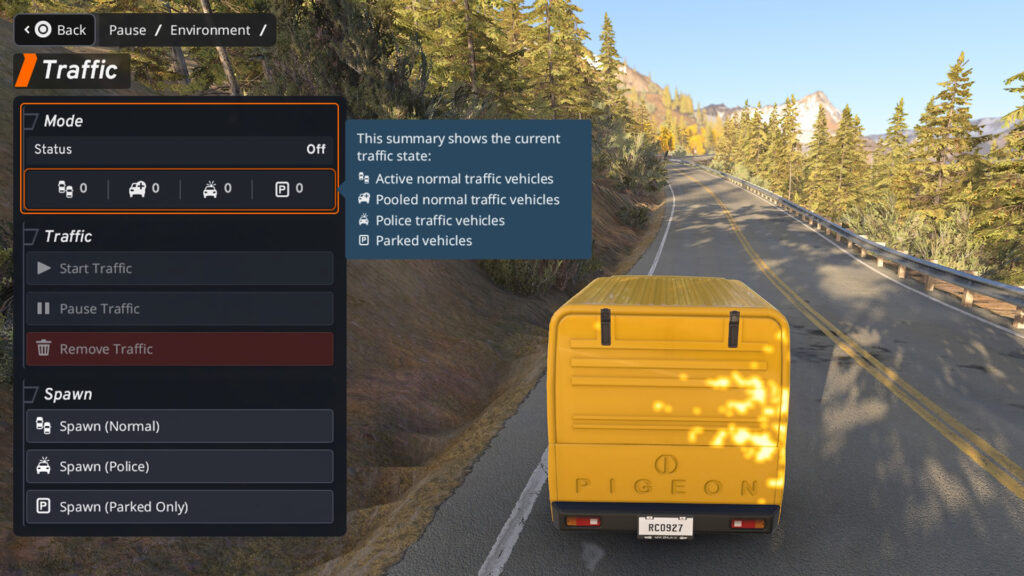
It’s also possible to spawn traffic quickly via the Environment menu. You can spawn normal AI traffic, parked cars or even the police. Whether you then decide to have them chase you is entirely up to you, however…
In the same menu, under ‘More simulation options’, you can quickly change the gravity of the map and choose to slow the action down, too.
How to record a replay
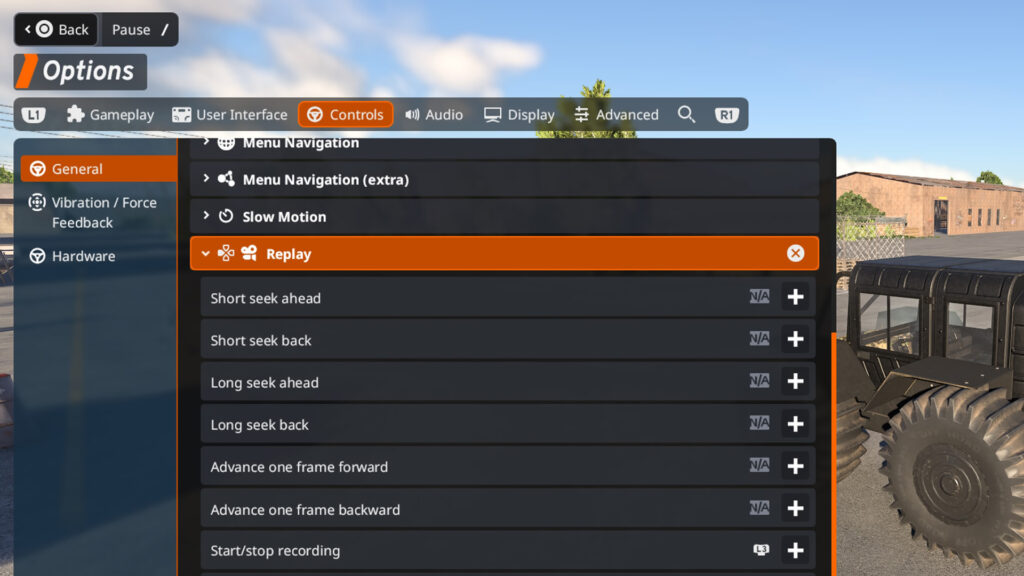
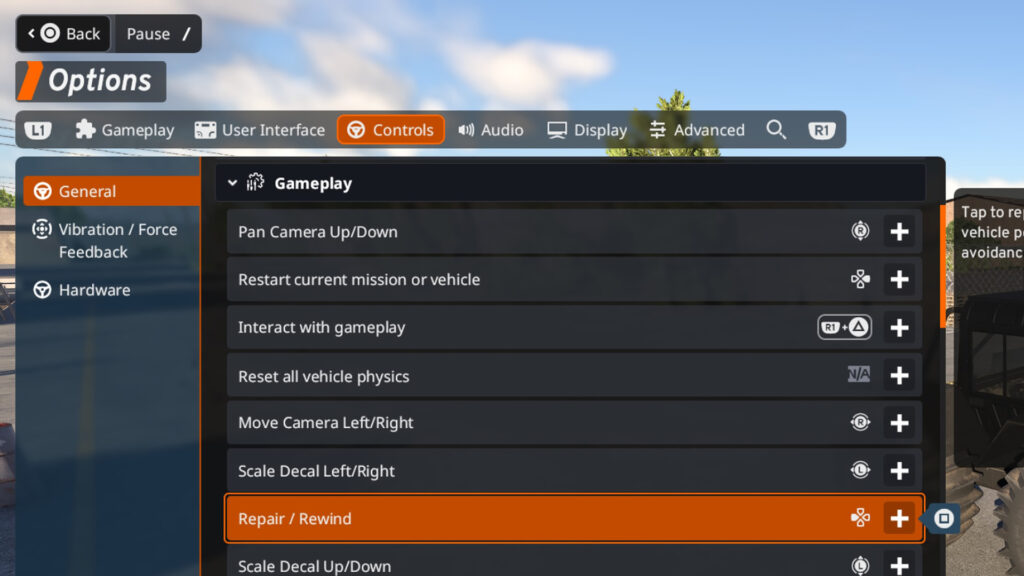
To begin recording replays, you’ll first have to map a button to record them. Head to the controls menu, map a button (I’ve gone for L3), and you can begin recording.
Note, however, that replays were a little borked in our early testing, so be prepared for these not to work properly yet. You can view saved replays from the main menu or in-game from the Freeroam menu.
Edit the UI
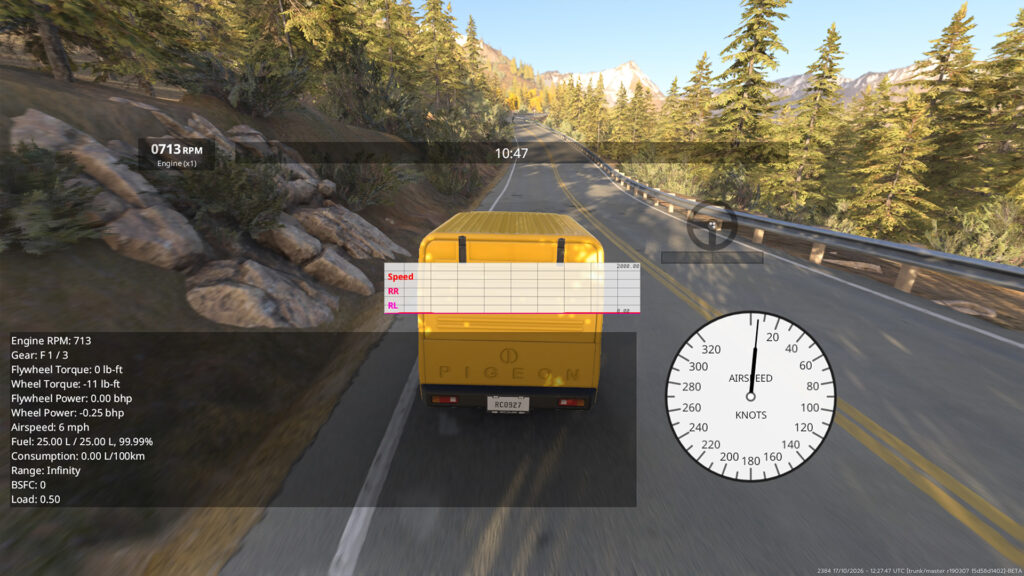
As with the PC version, you can tailor the UI in BeamNG to your heart’s desire on PS5, changing the layout based on the game mode.
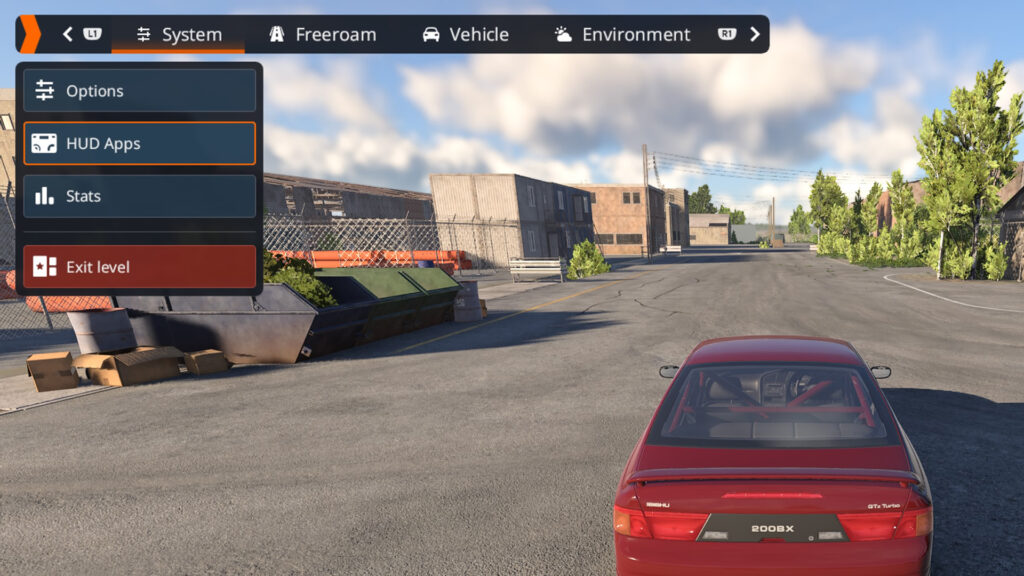
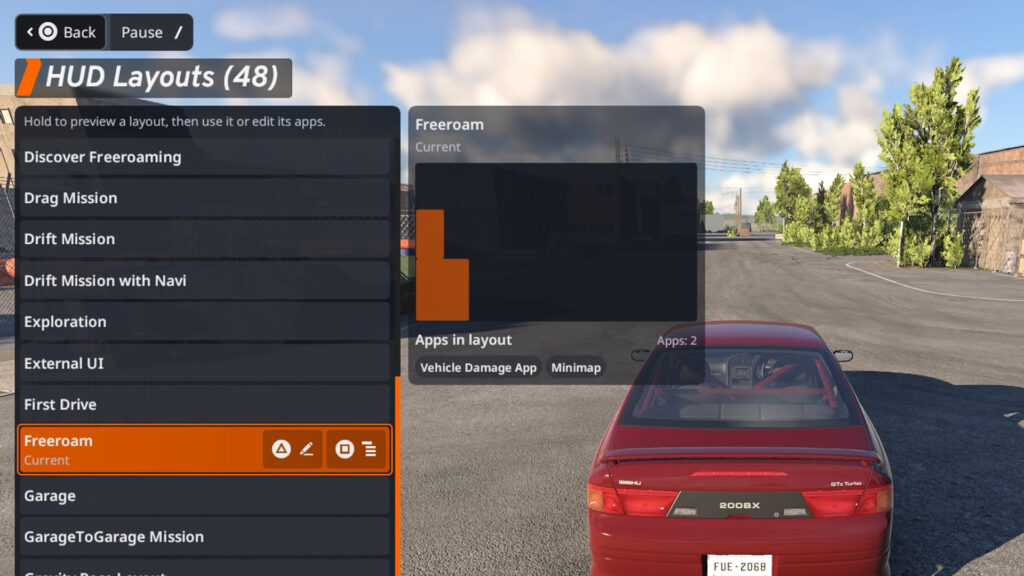
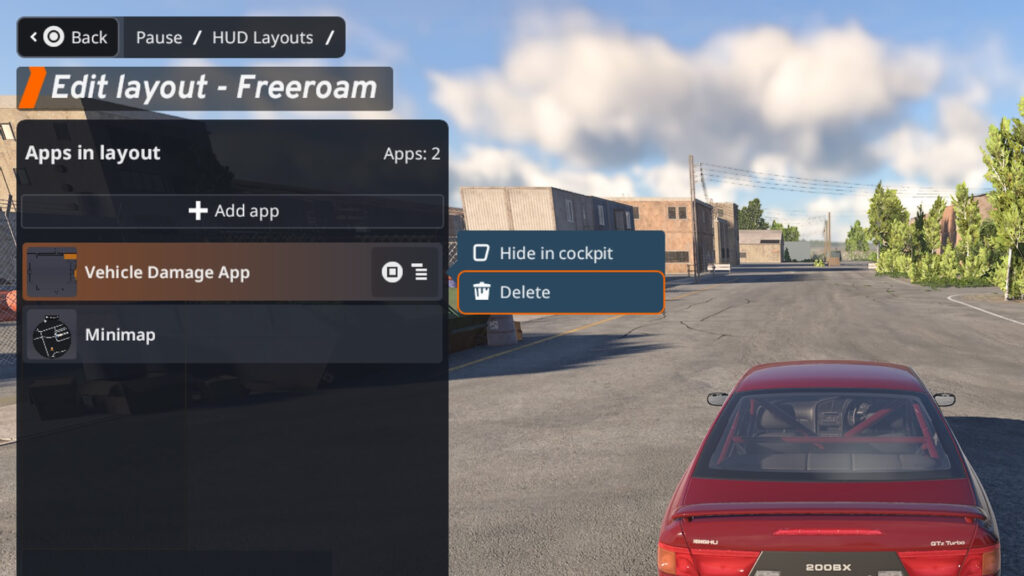
Hit Start, then scroll to the System menu during gameplay, selecting HUD Layouts. From here, you can add, edit or delete various HUD elements, changing their size and position. To record cinematic gameplay, however, I delete all HUD elements for a cleaner look.
You can also edit the HUD for specific scenarios, so the HUD you use for Rally mode or drifting can be wildly different from the one you use for rock crawling or free roam.
Now, this is a UI. This offers an optimal view of your airspeed and the time of day at any given moment, for the discerning driver/pilot.
How to reset your car in BeamNG
To reset your car in the PS5 version of BeamNG, simply press left on the D-pad. That’s it. Simple. Your car will be plopped back in the same place it was before, except not upside down/smashed to pieces/on fire.
Rewind the action
Further to the above, to rewind the action, press and hold Left on the D-Pad and your car will be zipped back in time to an original location of your choosing. Note: this doesn’t quite work like the rewind function in other games, because when your car resets, it will be stationary.
How to add dummies in BeamNG
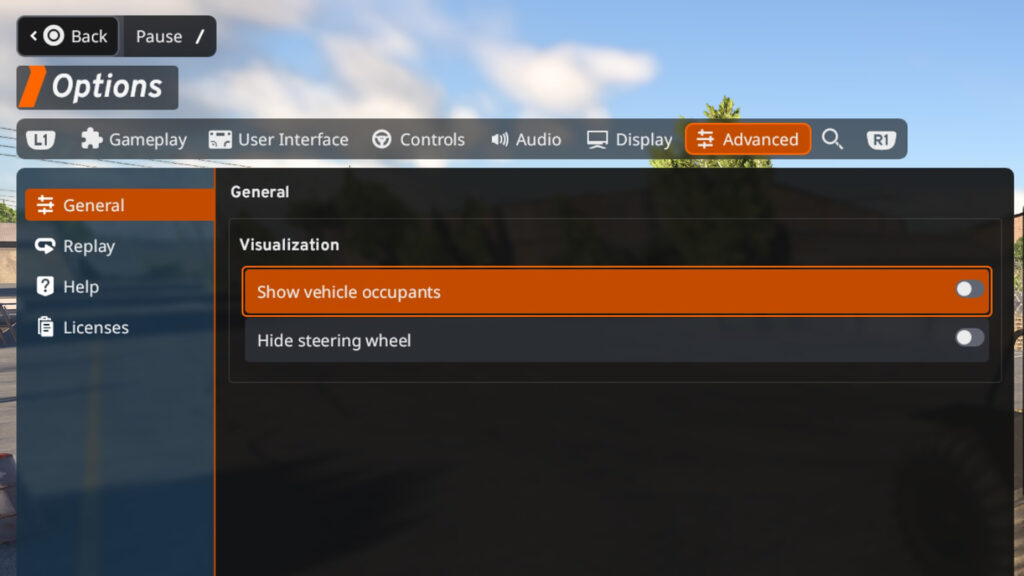
To add people-sized dummies to your car, simply check the box that says ‘Show vehicle occupants’ under the Advanced tab in the main options menu.
To add multiple passengers into your car, head once again to the Vehicle Config menu and cycle toward Vehicle Config -> Seating using R1.
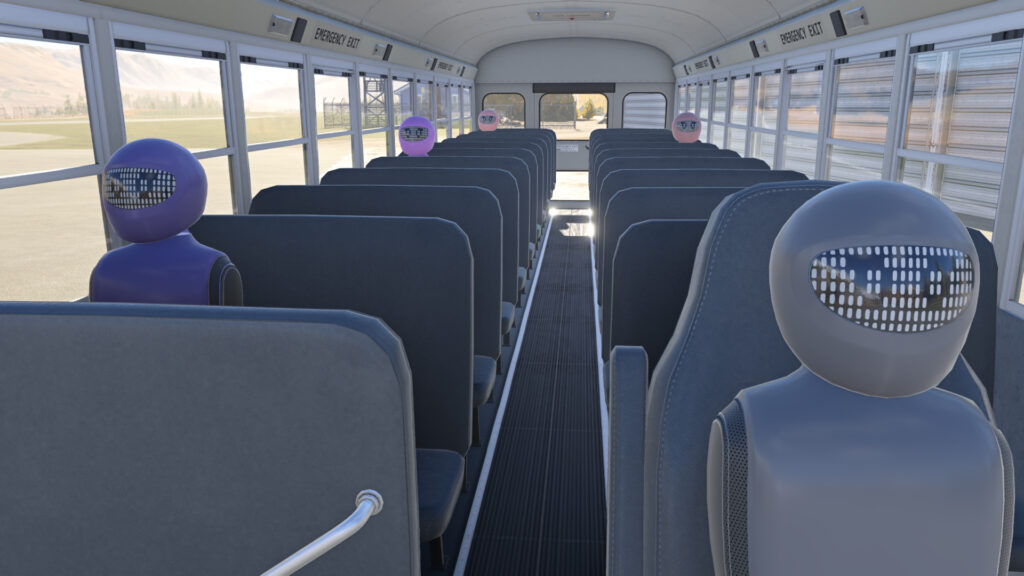
Altogether now: “The wheels on the bus go upside down, upside down, upside down, and on fire..”
Here, you can pick where to seat your dummies up to a maximum of four (five including the player character).
One neat thing about this is that the dummies are realistically weighted (if not proportioned), so when they’re in your car their mass affects how it drives.
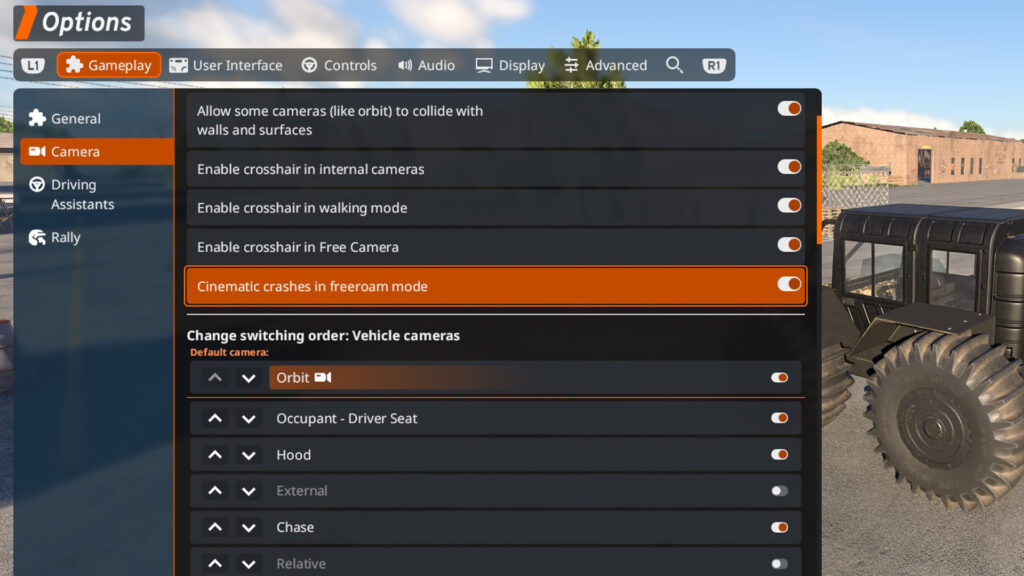
Enable the crash cam
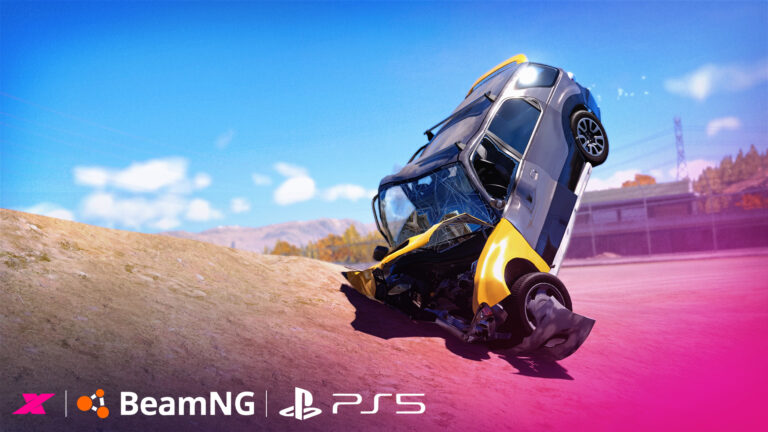
This is oh-so-simple to implement, but produces excellent results. By checking the box above, the game automatically slows time when a crash is imminent, so you can see all the twisted metal and shattered glass in glorious detail.
As a funny quirk, the slow-motion crash cam also engages on a near-miss, which is pretty cool. Combine this setting with a complete removal of the in-game UI for a proper cinematic feel.
The crash cam in action
Pro paint
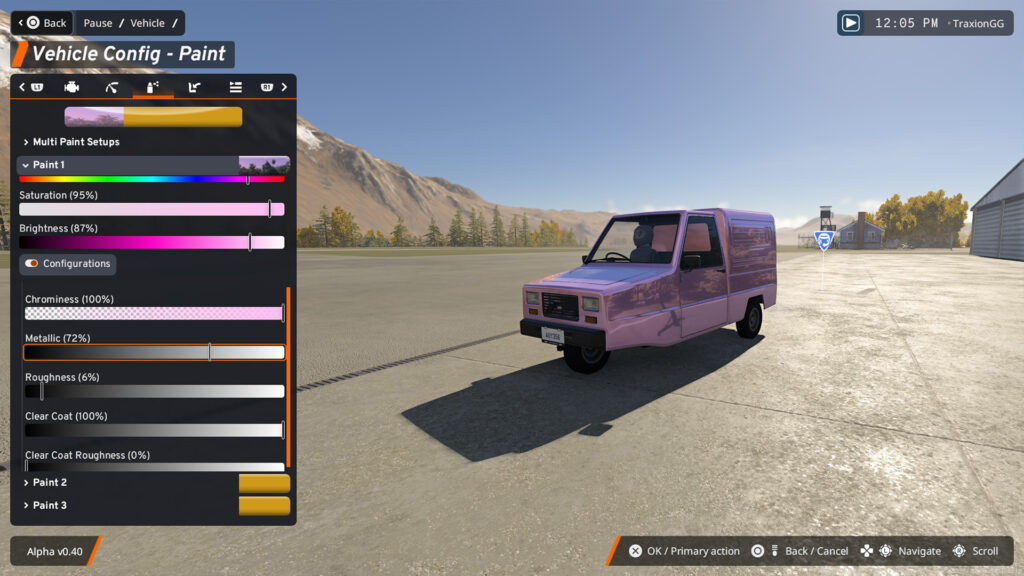
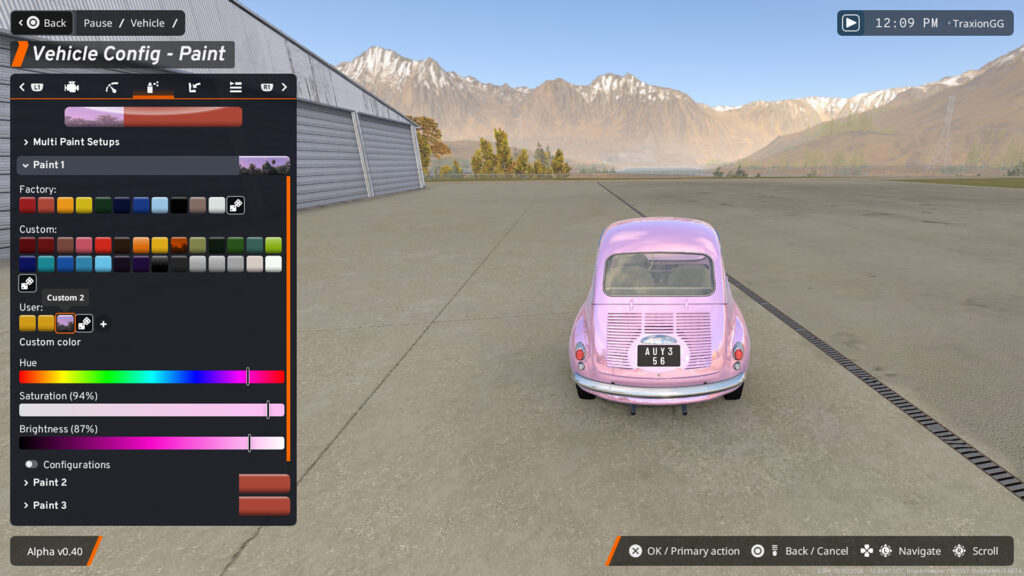
To paint your car in a custom colour, including adjusting its roughness, the clear coat and metallic qualities of the finish, head to the Vehicle Config -> Paint menu and scroll down to check the box labelled ‘Configurations’.
This opens up a new sub-menu to fine-tune your selected colour finish.
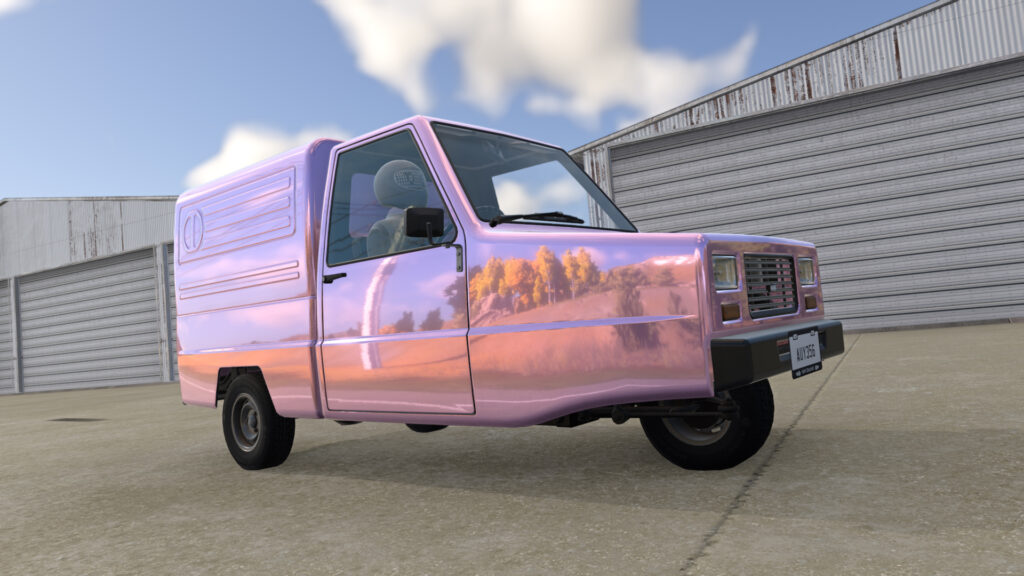
When you’re happy with the colour, add it to your presets via the User section further up, and the colour will be usable on other builds. Chrome pink? Mmm, the perfect choice for Peckham’s finest…
Remember to save your vehicle as a custom build if you want to preserve its colour and spec for future use.
Gorgeous
Add fun stuff
It goes without saying, but the goal in BeamNG is to have fun, so why not mess around with the control mappings, gravity, or car builds to add some variety to your gameplay.
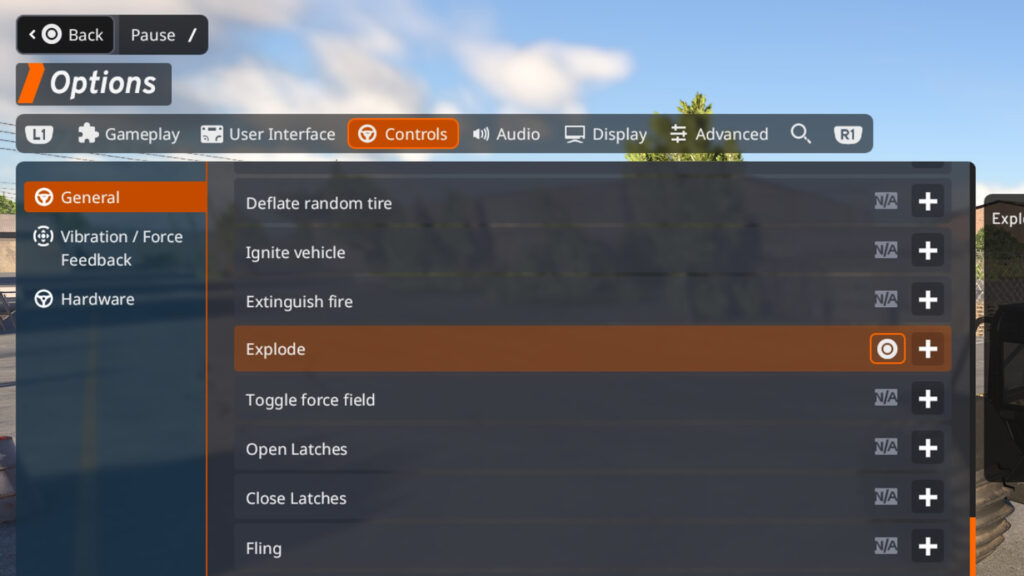
For example, I mapped a button to make my car’s engine spontaneously combust at any moment, you know, just like Jaguar Land Rover does in the real world.



Discussion